
With the availability of 9.1.0 we have address some of the most commonly requested feature capabilities in PBHA and we are starting to see a lot of requests for help and guidance around potential deployment models and pro’s and con’s of each.
[ For example the most of the commonly requested enhancements were expanding volume and host cluster support within partitions. ]
One of the things I’ve realised over the years is that High-Availability (HA) means something different to everyone you speak to! Each of us has a preconceived idea of what HA means in our own environment, for example a storage admin may have a very different view from a clustered application admin.
PBHA was designed around everything being HA, i.e. a truly geographically disperse active/active clustered application and always-on implementation, where applications can move between sites in a seamless manner and all servers and storage have fully redundant uniform access to each other. While this does provide the best possible availability, it also requires the most redundant and high bandwidth set of inter-site links (ISL) – I will use the term ISL to mean inter-site, rather than the usual inter-switch meaning in a fabric environment)
However, PBHA can be configured to provide active/active, active/standby, and even more active/failover “DR-like” configurations and I’ve met with clients that are looking for any one of these and some sub categories within those.
So lets get into some details of what each of those could look like, but in the first part of this series, lets set the scene on how PBHA is configured.
Configuring PBHA
Partition Basics
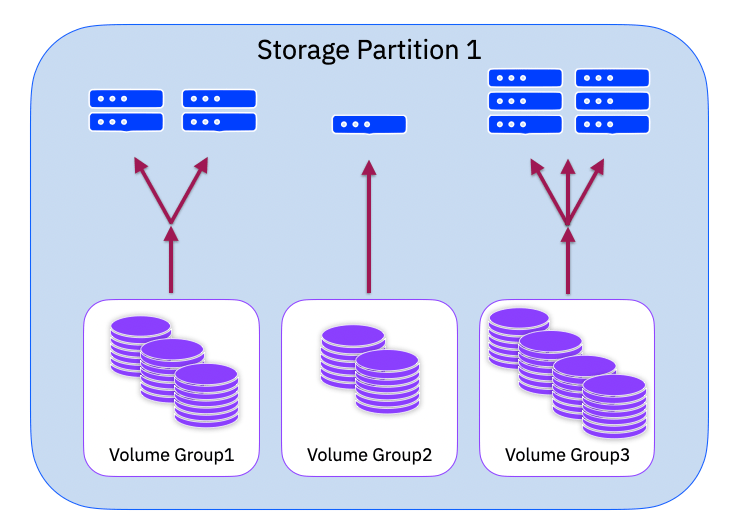
Partitions, partitions, partitions. The fundamental building blocks for creating a PBHA solution. A partition encapsulates the objects you wish to be highly available. In our case this is a setup of volumes, themselves encapsulated in volume groups, and the set of host objects that are mapped to those volumes.
In a green field configuration you can create an empty partition and then begin creating the objects within the partition, but with an existing configuration you can seed a draft partition with existing objects. So simply add the volume groups to the draft and it will pull in all the host objects and the related host to volume mappings.
The final step is to configure replication for the partition, which we will cover below. The act of adding a replication (HA) policy to the partition publishes the draft and makes it active. After publishing, the partition is fixed in configuration – while the HA policy is active.
There are a few critical things to note when creating and managing partitions.
- Today, when a host object is added, this will also pull in all other volumes / volume groups that are mapped to that host object. As stated above, if a host is in HA then all its volumes become HA. This may not be as you wish, there may be some volumes mapped to that host that do not require HA. If this is the case, you can either “split” the host – i.e. if you have enough WWPN then create two host objects, one for HA and one for local only – or you can have one host using FC-SCSI and another using FC-NVMe and divide the HA / local volumes accordingly. In the longer term we are investigating simpler options to solve this use case. Or of course you can leave them in HA – noting the capacity requirements this may have on the partnered system.
- Ensure your host definitions are correct and complete before you add them to a partition. Today you cannot modify the contents of a host object once it is in a partition. Typically you are not going to change the WWPN definitions in a host in normal running. The one use case here is if an HBA has failed, or is being replaced with newer technology. Part of this use case will require the host to be powered off to replace/change the HBA, while the host is down, you can removed the host object from the partition, update it, and add it back.
- Partitions can be merged. If you wish to add additional volumes / volume groups to an active partition you can create a new draft partition, add the volume groups and attach the same HA policy. Once this new partition is synchronised you can merge it with the original partition. They must have the exact same HA policy and be consistent synchronised.
- Today, partitions cannot be split. There are various use cases where splitting a partition could be a useful feature and this is being investigated.
Making a Partition HA
In the GUI you will see a new item in the ToC style menu system “Partitions” – clicking on this will take you into what we refer to as the “Partition Scope”. From here you can select your partition and click to “Configure Replication” (Partition View Pic)
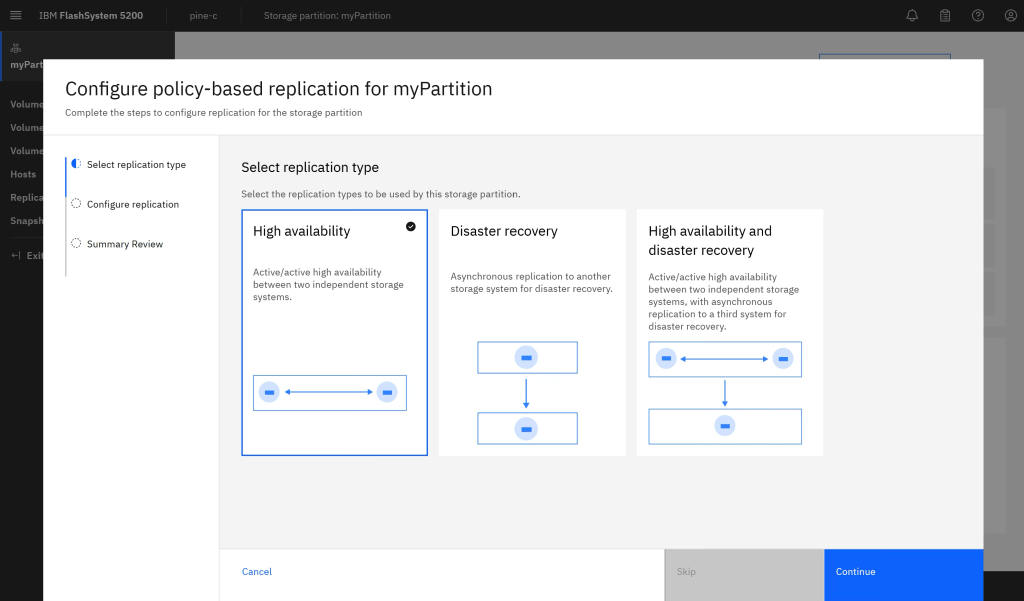
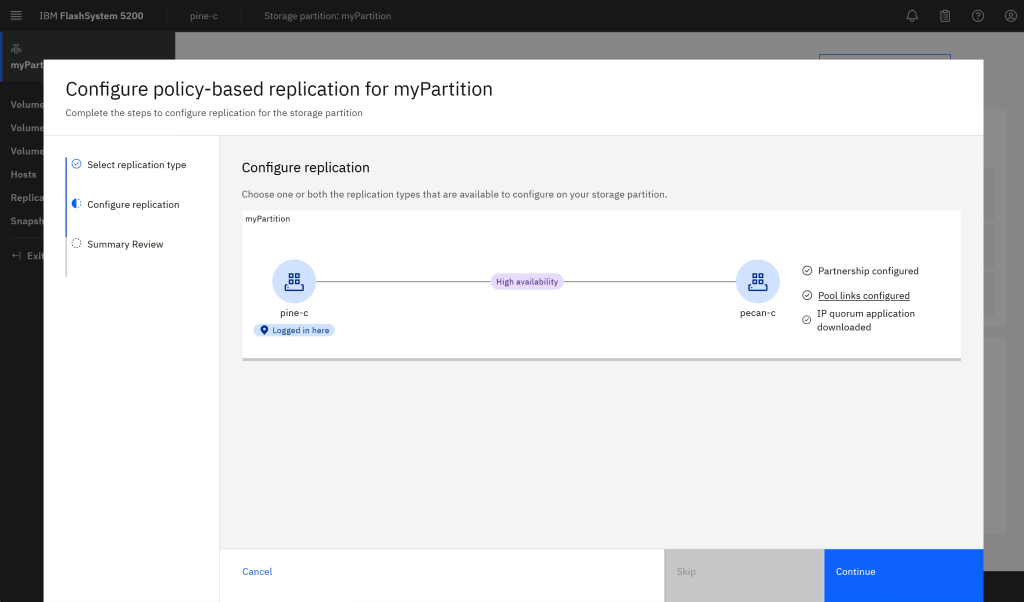
The replication wizard will guide you through the steps to configure the system for HA, after selecting to add HA (Add Replication Pic) it will ensure that you have configured the required system partnership (if not already existing), linking pools (if not already linked) and downloading the IP quorum application for split-brain arbitration. (Wizard Completion pic)
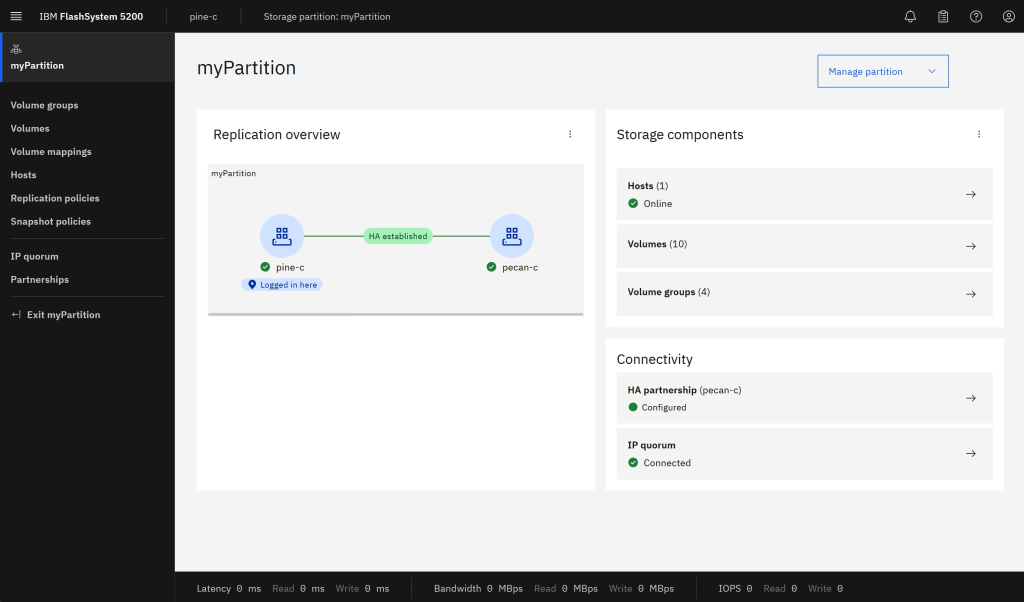
Once everything is completed locally, the system will co-ordinate the creation of the same partition (and sub objects) on the remote system and begin the background synchronisation of the data within the volumes. Once the partitions are consistent and synchronised you will see the status as in the HA Established pic.

Part 1 – Conclusion
In this first part of this series we have seen how partitions form the basic building blocks of PBHA, how to create and manage partitions, some considerations for “getting it right” on day1 and how to make the partition and its objects into a Highly Available Partition. In part2 (coming soon) we will look at the different types of HA deployment that are possible, for full HA, to HA storage and to DR like HA – including different host access modes, such as uniform and non-uniform.

 Barry Whyte and Andrew Martin : IBM Storage
Leave a comment